17 October 2025 | Tascomp Ltd
Prodigy Display Centre
Overview When engineers are spread across multiple buildings, maintaining visibility of live operations and responding quickly to developing issues becomes vital to minimise downtime. To overcome this challenge, a leading diesel engine manufacturer implemented the Prodigy Display Centre, developed by Tascomp to enhance real-time visibility across their facility.
When the engineering team relocated to a new building, further away from the test cells, it became clear that a new approach to visualising the state of the facility was needed. The Prodigy Display Centre provided the perfect solution.
What Does It Do?
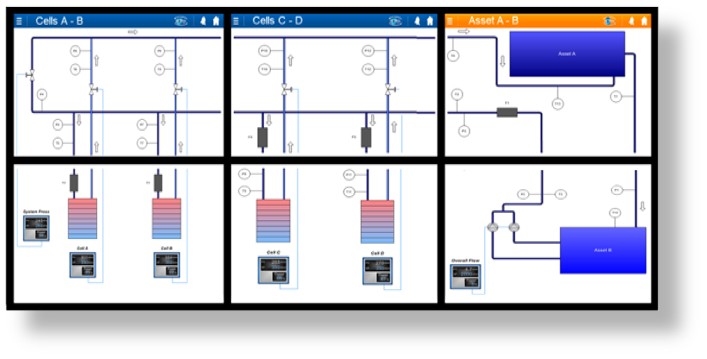
The Display Centre comprises six industrial monitors that can each be configured to show key operational information such as fuel levels, process water, steam boilers, and cell utilisation. The lower three displays are touch-enabled, allowing engineers to easily interact with the system and switch between data views for deeper insight.
Functionality
Powered by the Prodigy Facility Monitoring System (FMS) - the hub connecting over 15 distributed SCADA systems - the Display Centre collects and visualises live data from across the site. The screens can run independently, cycling through displays such as:
- Engine Details
- Process Water
- Emissions Analysis
- Chiller Systems
- Wastewater
- Fuel Tanks
User Interactions
Users can pause automatic cycling and manually control what’s shown using an intuitive, app-style touchscreen interface. Gesture controls allow smooth interactions - such as dragging displays between screens, zooming trend graphs, and swiping through app menus.
Navigation and Alarms
A top menu provides access to all available displays, enabling quick switching between systems. Alarm conditions are clearly highlighted with flashing icons, which can be tapped to open detailed alarm displays.
Feature Status and Home Page
Each feature has a status banner that indicates its condition - for instance, flashing if communication to a device has failed. At any point, all screens can be reset to their default layout by pressing the Home Page icon, ensuring a consistent, clear overview across the entire facility.